

Out of the box, ChatGPT, Claude and Gemini wait for you to ask. All three can now go first, if you set them up. Here is how, step by step, with three starter prompts, and an honest look at where the do-it-yourself approach stops.
Publisher disclosure: we build Sharick, which comes up at the end. The setup steps below come from each vendor’s own help pages, checked October 1, 2026. Features and plan limits change often.
What “proactive” can mean
There are three levels, and they’re worth separating before you set anything up:
- On a schedule: the assistant runs a prompt at a set time. “Every weekday at 8am, brief me.”
- On a trigger: it runs when something happens. “When a customer emails, draft a reply.”
- On its own judgment: it notices that something needs you, without being told what to look for.
All three assistants now do level 1 well. Level 2 is arriving. Level 3 is the hard one, and we’ll come back to it.
ChatGPT: scheduled tasks

- Plansall, Free to Enterprise
- Active tasks3 to 15, by plan
- TriggersGmail, Slack, GitHub on paid plans
Active task limits depend on your plan: 3 on Free and Go, 5 on Plus, 10 on Business and Edu, 15 on Pro and Enterprise.
- Open Scheduled in the sidebar and create a task, or simply ask in a chat: “Every weekday at 8am, give me a summary of AI news for founders.”
- Pick a specific time, or a looser window like morning or evening.
- Turn on notifications in Settings → Notifications (push, email or both) so the result reaches you.
Beyond schedules: on paid plans, event-triggered tasks can respond to Gmail, Slack or GitHub activity, and tasks can monitor a page and tell you only when something changes. On Pro and Business Premium, OpenAI’s new dots go further: always-on agents that keep working toward a goal between conversations. We compared them in OpenAI dots vs OpenClaw, Muse and Grok Bot.
If you used Pulse: OpenAI retired its earlier proactive feed, Pulse, in June 2026. Scheduled tasks replaced it. Source: OpenAI Help Center.
Claude: scheduled tasks in Cowork

- PlansPro, Max, Team, Enterprise
- WhereCowork, in the desktop app
- Runsremotely, even when you’re offline
- Open Cowork in the Claude desktop app and create a scheduled task.
- Give it a name and a prompt, choose how often it runs (hourly, daily, weekly, on weekdays, or manually) and an approval mode for what it may do without asking.
- Connect the tools it should read, such as Slack, Google Drive or your calendar, through Cowork’s connectors.
Why it’s useful: tasks run remotely, so they keep their schedule even when your computer is asleep or the app is closed. Claude’s memory also carries what it learns across chat and Cowork, so a daily brief can build on earlier conversations. Source: Claude Help Center.
Gemini: scheduled actions

- PlansGoogle AI Pro, Ultra
- Active actionsup to 10
- RequiresKeep Activity on
Work and school accounts need a qualifying Google Workspace edition.
- Open Scheduled actions in the Gemini app and choose Create new, or start from a template.
- Or just describe it in a chat: “Every Monday at 9am, summarize my week’s calendar and flag conflicts.” Gemini creates the action for you.
- Pause an action any time without deleting it.
Source: Gemini Apps Help.
Side by side
| ChatGPT | Claude | Gemini | |
|---|---|---|---|
| Feature | Scheduled tasks | Cowork scheduled tasks | Scheduled actions |
| Plans | All plans (limits vary) | Paid plans | Google AI Pro, Ultra |
| How it starts | Schedule, page change, or Gmail, Slack and GitHub events (paid) | Schedule or on demand | Schedule |
| Runs while you’re away | Yes | Yes, remotely | Yes |
| Beyond schedules | Dots (Pro, Business Premium) | Memory across chat and Cowork | Templates |
Three prompts to start with
These work in any of the three. Connect your email and calendar first, where your plan allows.
- Morning brief (weekdays, 7:30am): “Look at today’s calendar and my unread email. Tell me the one thing I must not miss today, anything I need to prepare before my first meeting, and nothing else.”
- Waiting-on check (Mondays and Thursdays): “Find emails I sent in the past 7 days that haven’t had a reply and look like they need one. List them with who I’m waiting on and one line on why it matters.”
- Friday review: “Summarize what I committed to this week in email and meeting invites, and which of those still look open.”
Where DIY stops
After a week, most people hit the same three walls:
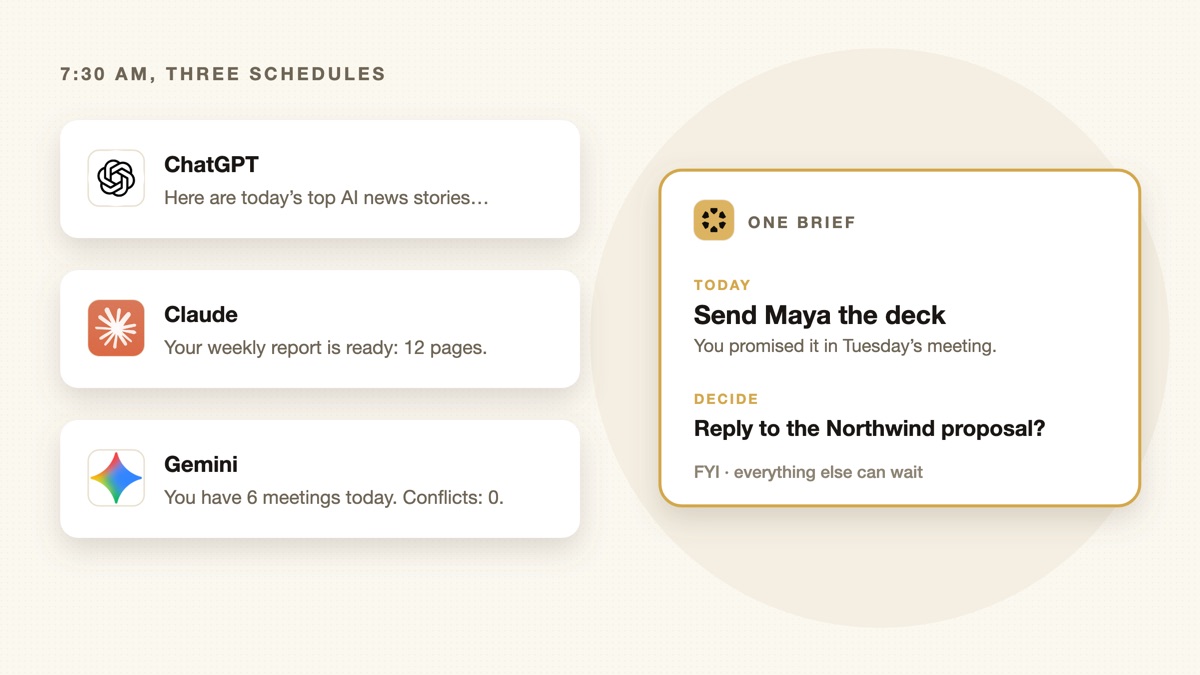
- Schedules don’t know what you promised. A 7:30am prompt can read your inbox, but it doesn’t know that in Tuesday’s meeting you said you’d send the deck by Friday. Commitments made in conversations never reach it.
- Every task is another handback. Three scheduled tasks in three assistants means three more things reporting to you each morning, each in its own format. You’ve automated the work and added to the traffic jam in your head.
- You maintain the prompts. Your priorities change weekly. The prompts don’t, unless you rewrite them.
That’s the gap between level 1 and level 3: running on a schedule versus noticing what actually needs you. It’s the gap we built Sharick for. It captures your meetings and messages, keeps track of what you promised and what you’re waiting on, and brings it all into one briefing sorted into today, decide and FYI. It’s what we call attentive, not just proactive.
If the scheduled prompts above are enough for you, great: you just saved yourself a subscription. If you find yourself maintaining five of them, that’s the sign.